API keys
This guide covers creating and managing API keys for your OpenAge products. API keys are essential for authenticating your applications with the OpenAge APIs.
Product test and live modes
Each product has separate API keys for test and live modes:
- Test Mode: Use
test.prod.ageapi.orghostname with test API keys - Live Mode: Use
prod.ageapi.orghostname with live API keys
Key differences
| Aspect | Test Mode | Live Mode |
|---|---|---|
| API Hostname | test.prod.ageapi.org | prod.ageapi.org |
| API Keys | Test-specific keys | Live-specific keys |
| Usage | Development and testing | Production traffic |
| Configuration | Separate test settings | Separate live settings |
Important - Start with test mode for development. You only need live mode API keys when you're ready to launch to production. In test mode you can use provider test credentials (for example, test cards and test IDs) to simulate outcomes; it can't produce real, verified results for real users. For details, see Testing and development considerations.
Creating a new API key
-
Log in to Compliance Studio
- Navigate to the Compliance Studio
- Log in with your credentials
-
Navigate to Products
- Select "Products" from the left sidebar
- Click "All Products" to list your products
-
Select Your Product
- Choose your product from the list
- Wait for the product to load
-
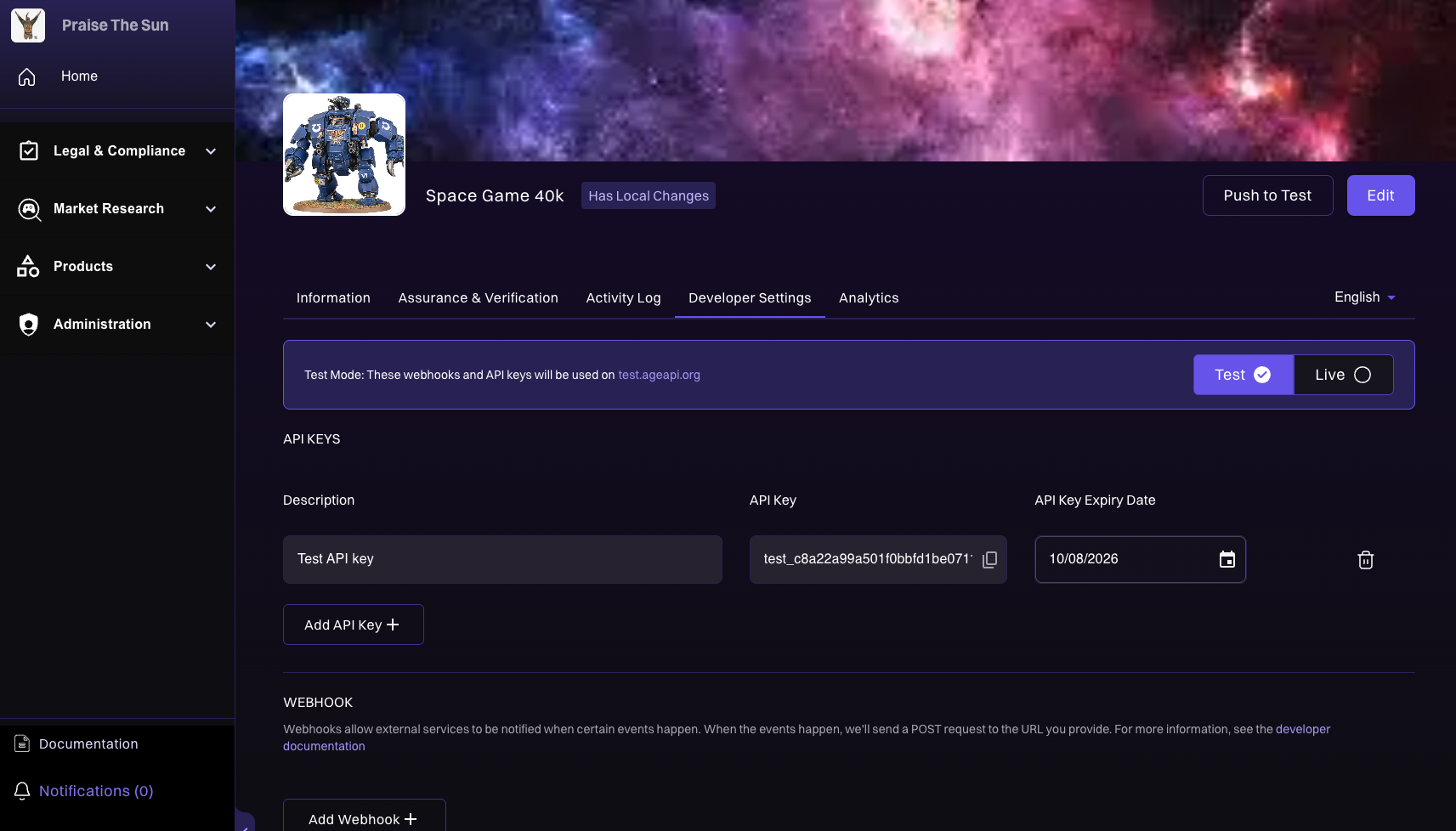
Access Developer Settings
- Click the "Developer Settings" tab
- You'll see the API key management interface
-
Create New Key
- Click "Add Keys" to create a new API key
- Copy and securely store your new API key
API key management
Key features
- Multiple Keys: You can have multiple valid API keys at the same time
- Expiration Dates: API key expiration dates can be updated at any time
- Easy Rotation: Create new keys before deleting old ones for seamless rotation
- Test/Live Modes: Switch between test and live environments using the toggle in Developer Settings
- Separate Configurations: Test and live modes have completely separate API keys, configurations, and webhooks
Managing existing keys
- Copy API Key: Copy your current API key to clipboard
- Update Expiry: Change the expiration date for your keys
- Delete Keys: Remove keys you no longer need
Security best practices
For detailed information on securing your API keys, including storage, rotation, and security recommendations, see the Security section in the Best Practices guide.
Next steps
- Best Practices: Security recommendations for API keys
- API Reference: Complete API documentation
- Age verification guide: Implement age verification